From the card in the reader to the cut
Two halves of the same day. The first gets footage off the card with proof it arrived whole. The second aligns everything by sound and hands you a finished timeline. You can use just one of them.
From card to storage
The Ingest tab exists because the moment a shoot day has only one copy is the moment it can disappear. Four steps, and the card leaves the reader with the work verified.
-
01
Pick the destination and name the job
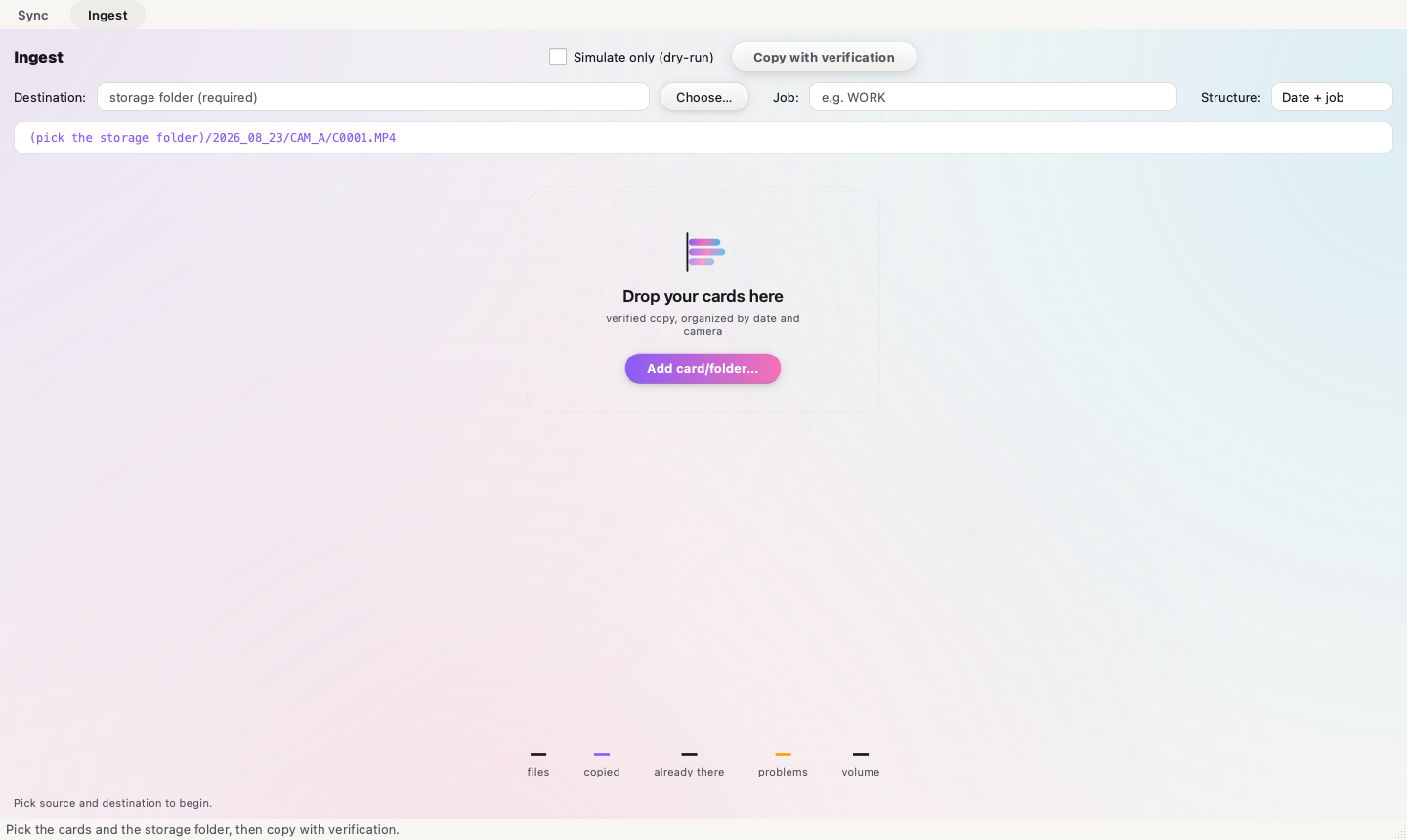
Point at the volume where the footage will live and type the job name. As you type, Sincou shows the real path that will exist on disk, with the date already in front. What appears on screen is literally the folder that gets created.
-
02
Drop the cards
Drag in one card, several, or folders you already copied. Sincou reads the whole tree, adds up the volume, and compares it against the free space on the destination before writing anything.
-
03
Copy with verification
Every file is copied and then read back from the destination to be compared with the source. This is the step that separates a copy from a backup: a failing card returns the right size with the wrong bytes, and only reading back reveals it.
-
04
Read the report
Every line carries a symbol and a state. The footer sums up files, copied, already there, problems and volume. When something fails, the reason appears on that file's own line, in plain words, and the dominant reason rises to the top.
About moving instead of copying
Sincou copies, always. Moving erases the source before you have verified the destination, and the one time that matters is the time it goes wrong. Format the card yourself, after you have seen the report.
From storage to timeline
Here the sound does the work. You hand over raw footage and get back a timeline with each camera on its own track, audio underneath, and whatever fell outside kept separate.
-
01
Organize the raw footage in folders by source
One folder per camera, one per recorder. Sincou uses the folder to know those files came from the same piece of gear, and that improves both the grouping and how the timeline reads. If the footage came through Ingest, the structure is already there.
-
02
Drop it all at once
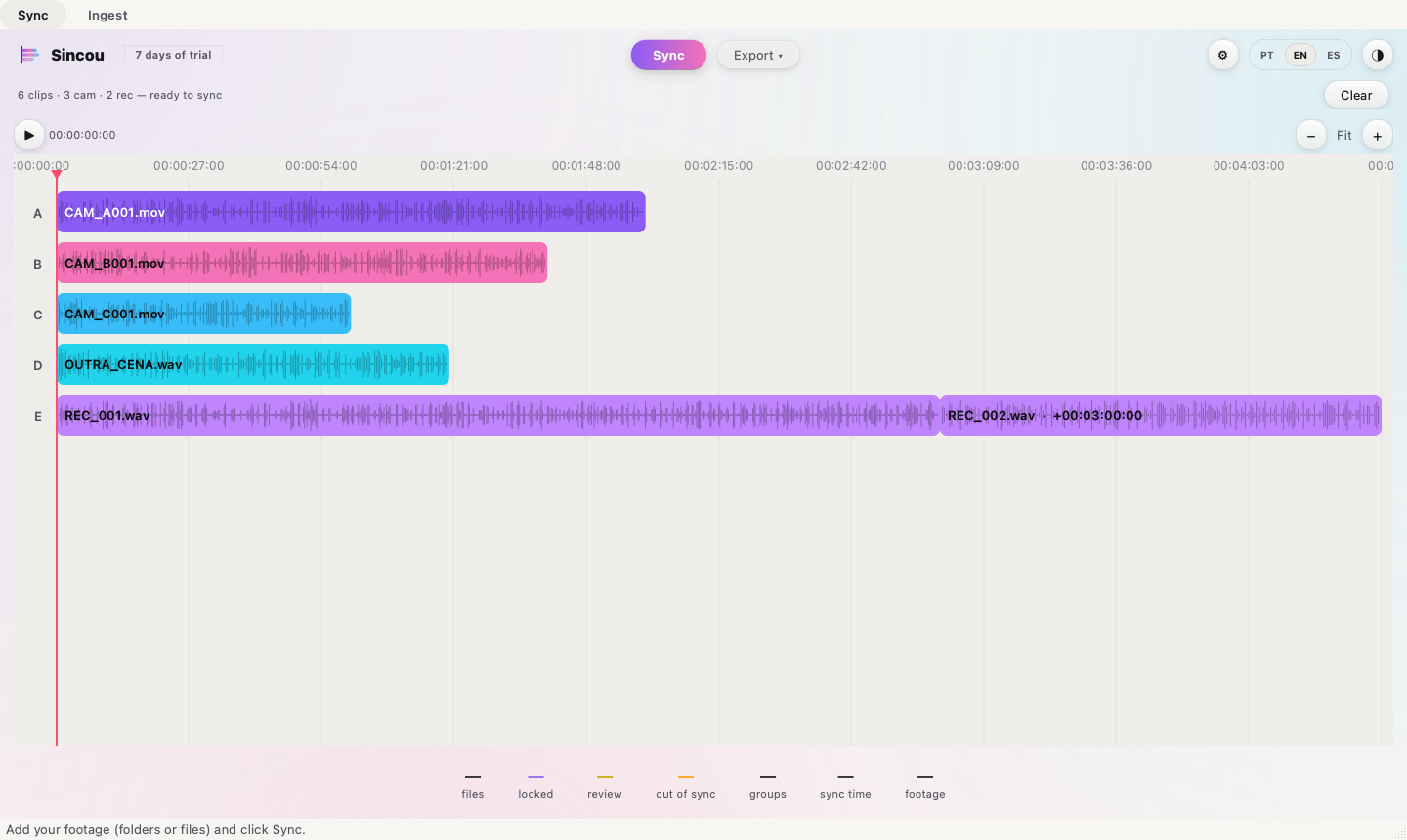
Drag in the whole shoot day. Sincou does a quick pass without decoding audio and draws the footage on the timeline right away, waveform included. The summary up top says how many clips, cameras and recorders came in.
-
03
Check the count before syncing
This is the cheap moment to notice a card got left out. If the camera count is wrong, fix it now: adding footage later means running the sync again.
-
04
Press Sync
The engine compares waveforms across every plausible pair, picks the best alignment for each, and resolves the whole set at once. When it finishes, the clips slide into position and a chime confirms the end.
-
05
Read the timeline
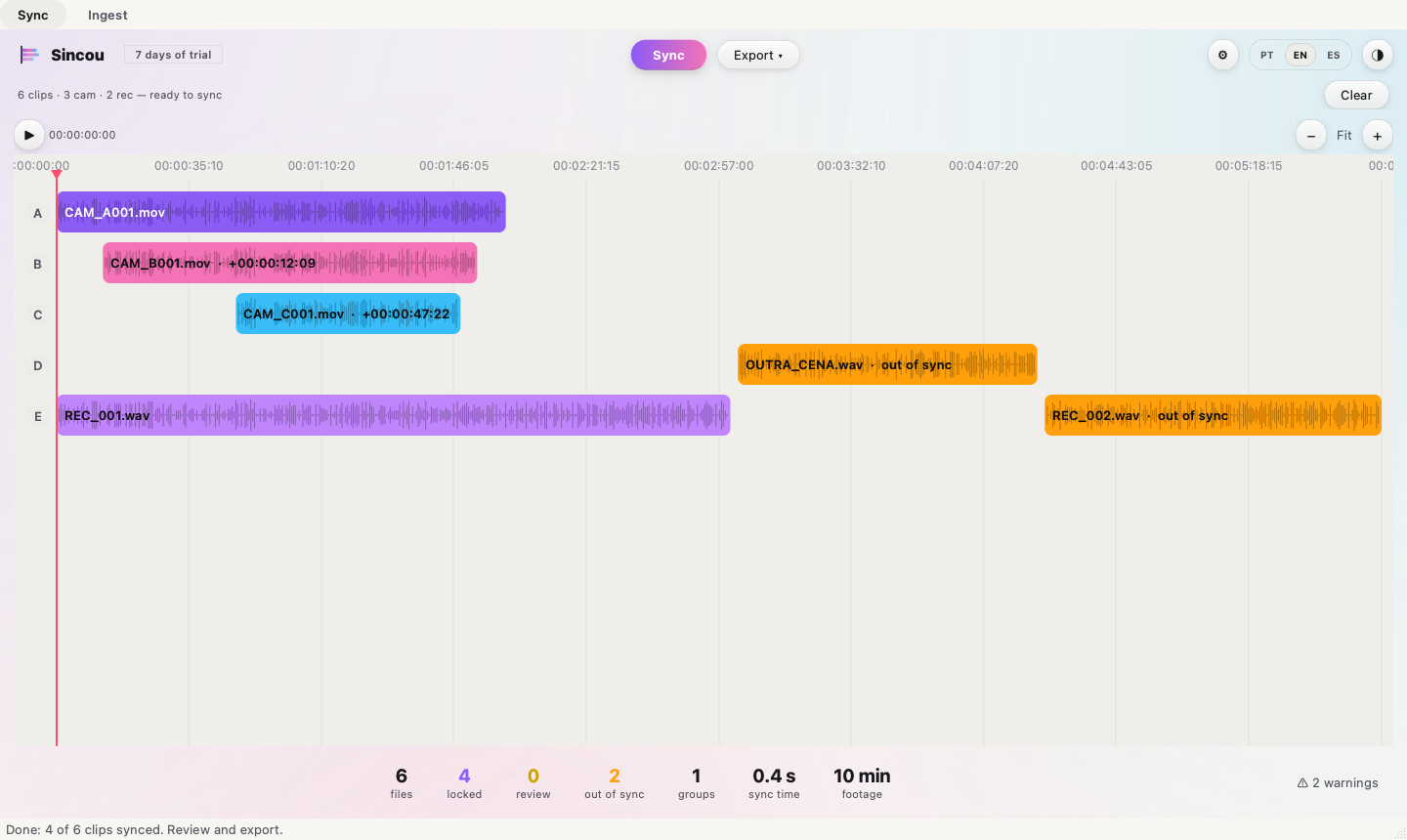
Each row is a source. Cameras sit on top, recorders underneath. The horizontal distance between blocks is the real time between recordings, so empty space carries information too.
-
06
Listen before you export
Click anywhere and hit play. Sincou mixes every clip under the cursor in real time. Aligned sounds like a single source; out of sync produces echo. It's the fastest check there is, and it happens before the footage reaches your editor.
-
07
Export to your editor
Pick the destination in the Export menu. Each option carries the import instruction that program expects, because each of them imports differently.
What the screen is telling you
Three things carry information: the colors, the numbers in the footer, and horizontal position.
The colors
One color per source. These are the cameras and recorders, and the color stays the same from the first clip of the day to the last.
Synced, but with confidence below the lock threshold. The alignment is probably right; it's worth a check with the player.
Fell out of sync. No trustworthy audio overlap with the rest of the footage. It goes to the end of the timeline, kept separate.
The footer numbers
How many clips came in altogether.
Aligned above the confidence threshold. You can trust these.
Aligned, but below the threshold. Check these.
No trustworthy pair. They sit at the end, in orange.
Recording blocks found. Usually matches the number of takes in the day.
How long the engine took.
If triage feels too conservative
The gear icon up top opens two thresholds. Sync threshold is the minimum for Sincou to accept an alignment at all. Lock threshold is the minimum for it to stop asking for review. Footage with heavy set noise or short overlap wants a lower threshold; clean footage takes a higher one.
When something falls outside
An orange clip almost always has one of these causes.
There is no real overlap
The clip was recorded while nothing else was rolling. Here the orange is correct: there is nothing to sync it against.
The overlap is too short
A few seconds in common produce correlation that looks good and isn't. Sincou weighs the evidence by how much overlap it had, precisely to avoid falling for that.
The audio has no events
A stretch of silence, wind, or continuous tone gives the engine nothing to compare. Alignment uses the instants where sound attacks, and where there is no attack there is no anchor.
The camera recorded without audio
No audio track means no syncing by sound. Timecode can still place the clip, if it exists.
How each editor imports
Adobe Premiere Pro
Export FCP7 XML and open the file from Premiere (File › Open). It converts into a project with the sequences built, media online, and audio linked to video. Your raw folders become bins.
DaVinci Resolve
Export FCP7 XML and use File › Import › Timeline. Media links itself. As an alternative, Sincou installs a script under Workspace › Scripts that syncs the open bin and builds the timelines without leaving Resolve.
Final Cut Pro
Export FCPXML and import it from Final Cut. The file carries the tracks and the sync offsets.
Native multicam
Turn on Matching timecode in the export menu. Sincou writes the same timecode across every camera in the XML, and your editor's multicam feature groups them on its own. Your original files are never touched.
Questions along the way
Can I run only Ingest, without syncing?
Yes. The two tabs are independent. Plenty of people run Ingest when they get back from the shoot and Sync the next day, with the footage already on storage.
Can I sync footage that never went through Ingest?
Yes. Sync reads any folder. Ingest exists for the path off the card, and is not a prerequisite.
Does Sincou change my files?
No. It reads the media and writes a separate XML. Even the matching timecode option leaves files alone: the new timecode lives inside the XML.
How many cameras fit?
There is no fixed limit. Cost grows with the number of plausible pairs, and a two-camera day with two recorders and more than two hundred clips runs in one pass on a MacBook.
What about a multitrack recorder?
Each file becomes a source. If your recorder writes one file per channel, put them in the same folder: Sincou treats them as the same piece of gear and won't try to sync one against the other.